
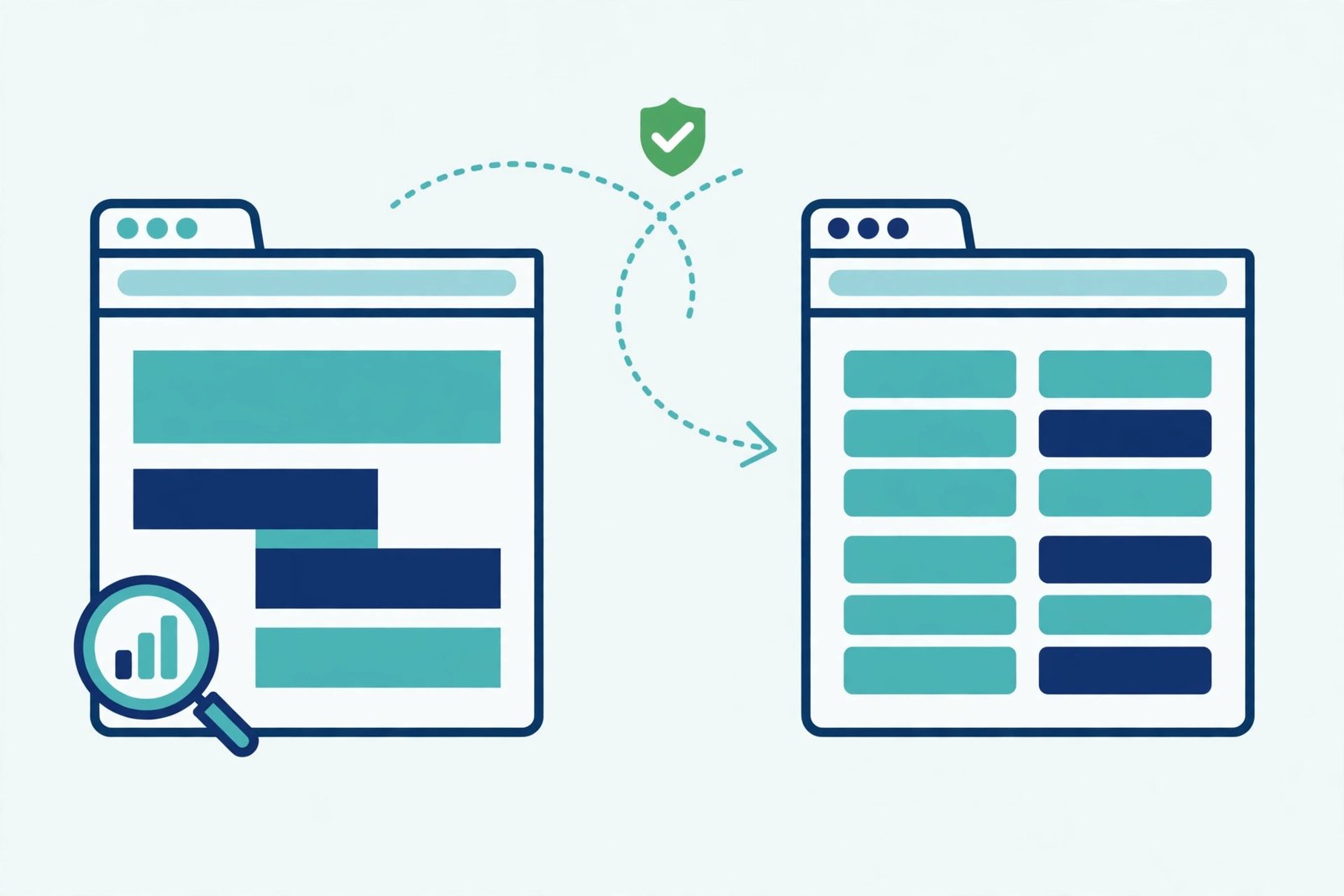
Moving from WordPress to Webflow can give you a faster, cleaner website that is easier to manage. But it can also cost you the search rankings you spent years building, if the move is handled badly.
Most ranking losses are avoidable: they come from missing redirects, changed URLs, lost meta data, and launches that were never tested. This guide walks through each one.
Why SEO is at risk when you change platforms
Your rankings belong to your URLs, not to your platform. When someone searches and finds your site, Google is pointing at a specific page address. If that address stops working after the move, the ranking goes with it.
Three things put rankings at risk: URL changes, lost page signals, and a messy launch. WordPress and Webflow handle URLs differently, titles and meta data can get lost in the rebuild, and a new site with broken links or slow pages gets noticed quickly. SEO needs to be part of the plan from day one.
1. Audit your current SEO before you move anything
Before a single page is rebuilt, record where your site stands today. Without a baseline, you cannot tell whether the migration helped or hurt.
List every page and post on your WordPress site, with its URL, title, meta description and the search traffic it receives. Your analytics and search console data will show which pages matter most — usually a small number of pages bring in most of the traffic. Pay special attention to your top ten pages by organic traffic, pages with backlinks, and your blog posts, including their categories, authors and publish dates, so the new Webflow CMS can carry them across. Old, thin or irrelevant pages that bring in no traffic can be dropped rather than rebuilt, which saves time and improves the new site.
2. Keep your URL structure as close as possible
The single most effective thing you can do for your rankings is to keep your URLs the same. Every URL that stays identical needs no redirect and keeps its ranking history intact.
Plan your new Webflow URL structure before the build starts, and match it to the old WordPress structure wherever you can. WordPress blog posts often include a date or category in the URL, while Webflow CMS collections use a simpler structure, so decide early how each old post URL will map to its new address. Category pages work differently on the two platforms too, and trailing slashes and www versions must stay consistent, or Google will treat the same page as two different pages. Where a URL has to change, note it down — that list becomes the redirect map in the next step.
3. Build a complete redirect map
A redirect map is a simple list: every old WordPress URL on one side, the new Webflow URL it should point to on the other. For every changed URL, you need a 301 redirect — a permanent redirect that tells Google the page has moved.
A missing redirect means a visitor and Google both hit a 404 error page instead of your content, so this step is worth doing properly.
To build the map, export the full URL list from your WordPress site. Match each one to its new Webflow address, or mark it as intentionally dropped if the page is genuinely not worth keeping. Then set up the redirects in Webflow before launch, and test a sample of them on the staging site. Our step-by-step migration guide explains the full process, including how redirects work and what to check before launch.
4. Move your titles, meta descriptions and headings
Every page on your WordPress site has a title tag and a meta description that appear in search results. Copy them to the new Webflow pages, word for word, unless you have a good reason to improve them.
The same applies to your heading structure. If a page uses one H1 followed by H2 subheadings, the rebuilt page should do the same. Headings tell Google how a page is organised, and a page that loses its headings looks like a different, weaker page.
Check each page as it is rebuilt: title tag matches the old one, meta description is present and matches, one H1 per page with H2s in a sensible order, and image alt text carried across. Check images and internal links too: compress images, keep descriptive alt text, and point internal links at the new addresses, not the old ones.
5. Protect your blog and CMS content
For most sites, the blog is the biggest part of the migration and the easiest to get wrong. Blog posts bring in search traffic over months and years, so a broken blog can cost more than a broken homepage.
Rebuild your blog as a Webflow CMS collection, and carry across the fields that matter: title, URL slug, publish date, author, category, and the body content with its headings and images intact.
Check a sample of posts on the staging site before launch. Open a few old favourites, compare them with the WordPress originals, and confirm the content, images and links all survived the move.
6. Test everything before the domain switches
Never launch a migration without testing the new site first. Build it on a Webflow staging domain, and run through a checklist before the real domain is pointed at it.
- Click through your top pages and confirm they load, look right and link correctly on desktop and mobile.
- Test every form, including the contact form, so enquiries do not go missing after launch.
- Check the redirect map with a sample of old URLs and confirm each one lands on the right new page.
- Run a speed check on your key pages and fix anything noticeably slower than the old site.
- Confirm titles, meta descriptions and headings are in place on the pages that matter most.
After launch: what to watch in the first month
Launch day is not the end of the migration. Watch your search console for crawl errors and 404s in the first two weeks, check your top pages against the pre-launch baseline, and resubmit your sitemap so Google finds the new pages quickly.
Expect a short dip in rankings while Google re-crawls. A well-planned move recovers quickly; a steady fall over several weeks means something was missed.
FAQ
Will I lose my Google rankings when I migrate from WordPress to Webflow?
Not if it is done properly. Keep your URL structure as close as possible, set up a 301 redirect for every changed URL, and carry your titles, meta descriptions and headings across. A short dip while Google re-crawls is normal, but a well-planned move recovers quickly.
Do I need to keep my WordPress site after the migration?
You do not need to keep it live, but keep a backup of the content, images and URL list — it holds the redirect map if a missing redirect turns up after launch.
Should I redesign my site during the migration?
It depends on your budget and timeline. A straight migration is faster and keeps more of your SEO intact, because the design and structure stay familiar to Google. If your design is outdated, combining the move with a redesign saves you from rebuilding twice, at the cost of a few extra weeks. Our Webflow services cover both options.
Final thoughts
Migrating from WordPress to Webflow without losing SEO comes down to four habits: audit first, keep your URLs, redirect everything that changes, and test before you launch. Most of the work is preparation, not building.
If you are planning a move and want it handled with the SEO side taken care of from the start, get a free quote and we will take it from there.