
Figma to Webflow is the process of turning a Figma design file into a fully functional, responsive website built in Webflow. Instead of handing developers static mockups to hand-code from scratch, the design is rebuilt natively inside Webflow’s visual canvas — keeping the pixel-faithful look of the original design while gaining clean production code, a CMS your team can actually edit, and fast hosting on one platform. At Recycling Media, our Webflow team converts Figma designs into live Webflow sites every week. This guide covers the three conversion methods, the complete step-by-step process, the tools worth using, what affects cost, and the mistakes that derail most conversions.
What “Figma to Webflow” Actually Means
Figma and Webflow do two different jobs. Figma is a design tool — it’s where layouts, colors, typography, and components are created as flat visual files. Webflow is a website builder — it’s where those visuals become a real site with working navigation, responsive behavior, forms, animations, and a CMS.
A Figma-to-Webflow conversion bridges that gap. It is not a one-click “import” (despite what some plugin marketing suggests) — it is the deliberate work of recreating every section of the design as structured HTML and CSS inside Webflow: reusable classes, a style system, responsive breakpoints, CMS-connected content, and interactions. Done well, the finished site is visually identical to the Figma file — but fast, editable, and SEO-ready, which a flat design file never is.
Why Convert Figma Designs to Webflow?
Plenty of teams design in Figma and then wonder whether to hand the file to developers for custom coding or rebuild it in Webflow. Here’s why the Webflow route wins for most business websites:
- Design fidelity without translation loss. When a developer interprets a Figma file, small details — spacing, hover states, animation easing — get lost or approximated. Rebuilding directly in Webflow’s visual canvas keeps you in control of every pixel.
- Clean, production-ready code. Webflow generates semantic HTML and CSS as you build — the output of a careful front-end developer, without writing or maintaining the code yourself.
- A CMS non-technical teams can use. Blog posts, team members, case studies, FAQs — once collections are set up, anyone on the team can publish content without touching the design.
- Faster iteration after launch. Testing a new headline, swapping a hero image, or adding a landing page takes minutes in Webflow — changes that would mean a developer ticket on a coded site.
- Hosting, security, and backups included. No server to manage, no plugin updates to babysit, and automatic backups with one-click restore.
If you’re still weighing Webflow against other platforms for the rebuild, our Webflow vs WordPress comparison breaks down where each platform shines.
3 Ways to Convert Figma to Webflow
Three approaches, three very different outcomes:
| Method | How it works | Best for | Watch out for |
|---|---|---|---|
| Manual rebuild (recommended) | Recreate the design section by section in Webflow with a proper class system. | Client sites and marketing sites that need to perform. | Needs real skill; shortcuts show up as messy code later. |
| Plugin-assisted import | Copy Figma layers into Webflow with a plugin, then clean up and rebuild. | Simple landing pages or a head start on a manual rebuild. | Imports are rarely production-ready — expect heavy cleanup. |
| Hire a conversion specialist | An agency or freelancer delivers a finished, QA-tested Webflow site. | Teams without in-house Webflow expertise or tight deadlines. | Quality varies — vet portfolios carefully (more below). |

Method 1: Manual rebuild — the gold standard
This is how professional Webflow developers work: Figma on one screen, Webflow on the other, rebuilding each section with proper layout tools while creating a clean, reusable class structure. It’s slower than a plugin import, but the result is fast, responsive, and easy to maintain. For any site that represents your business, insist on this method.
Method 2: Plugin-assisted import — a head start, not a finish line
Webflow’s official Figma to Webflow plugin copies frames and layers from Figma directly into a Webflow project — genuinely useful for simple layouts. But treat it as scaffolding: imported designs need class cleanup, responsive rebuilding, and manual fixes for Figma-specific quirks like absolute positioning. Never launch a plugin import without a full QA pass.
Method 3: Hiring a Figma-to-Webflow service
If your team designs but doesn’t build, outsourcing the conversion is often the smartest move. For a fixed price and a predictable timeline, consider a Figma to Webflow conversion services partner. If you go this route, our guide on what to ask before hiring a Webflow developer will help you separate real experts from the rest.
The Step-by-Step Figma-to-Webflow Process
Here’s the process a clean conversion follows:
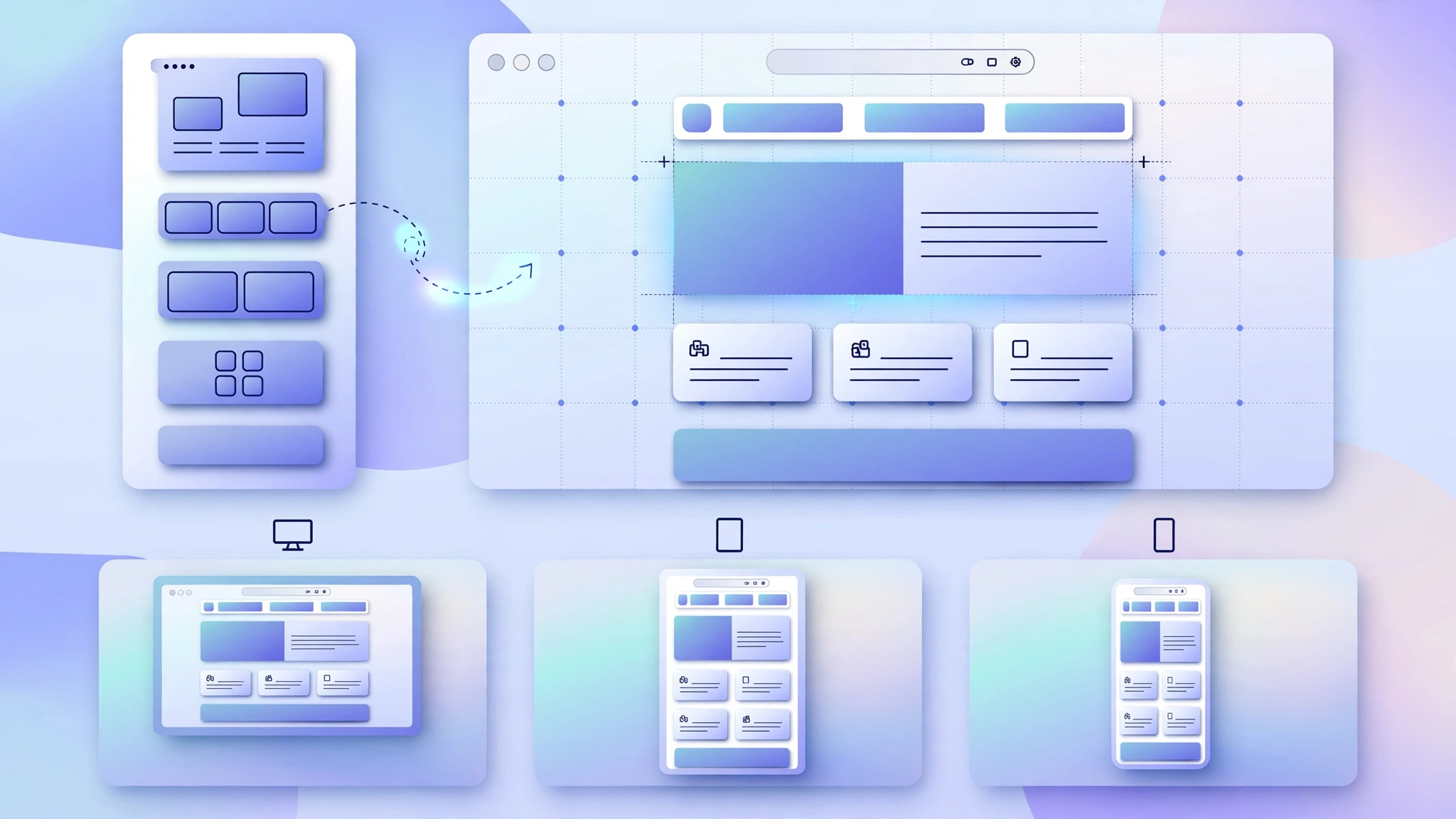
Step 1: Audit and clean up the Figma file
Most conversion pain starts in Figma, not Webflow. Before building anything, review the design file: are layers named consistently? Are colors and text styles defined as reusable styles? Are there hidden layers or placeholder images that shouldn’t ship? A messy Figma file becomes a messy website — the prep checklist below covers exactly what to fix.
Step 2: Set up the Webflow project foundation
Create the project, then build the design system first: global styles for body text and headings, color swatches, a class-naming convention, and reusable components like buttons, nav bars, and footers. This foundation is what makes the rest of the build fast and consistent.
Step 3: Build the layout section by section
Work top to bottom — navigation, hero, content sections, testimonials, CTAs, footer — recreating each Figma frame as a Webflow section. Use relative units and flexbox/grid rather than fixed pixel positioning so layouts adapt naturally. Build from your design’s primary breakpoint first, matching spacing, typography, and colors to the Figma specs.
Step 4: Make it fully responsive
Webflow cascades styles down from larger breakpoints to smaller ones. After the desktop build, check tablet and both mobile breakpoints: stack grids, scale type down, simplify navigation into a hamburger menu, and make tap targets finger-friendly. Test at real device widths, not just Webflow’s preview.
Step 5: Connect dynamic content with the CMS
Anything that repeats — blog posts, services, team members, portfolio items, FAQs — should become a CMS collection with a template page instead of hard-coded static pages. After launch, adding a new blog post or case study takes minutes instead of requiring a developer.
Step 6: Add interactions and animations
Recreate the micro-interactions from the design: scroll-triggered fades, hover states, accordion FAQs, sliders, and page-load animations. Keep them purposeful — animation should guide attention, not decorate — and always check performance on mobile.
Step 7: QA, SEO basics, and launch
Before launch, run a full quality pass: test every link and form, check all breakpoints on real devices, proofread copy, compress images, set page titles and meta descriptions, add alt text, connect a custom domain, and submit the sitemap to Google Search Console. For the SEO side of launch, our Webflow SEO optimization guide walks through the full optimization process step by step.
Preparing Your Figma File: The Pre-Flight Checklist
Share this with your designer — an hour of Figma cleanup saves days of Webflow rework:
| Checkpoint | What to check | Why it matters |
|---|---|---|
| Auto layout everywhere | Frames should use auto layout instead of manually positioned elements wherever possible. | Auto layout maps cleanly to flexbox in Webflow; absolute positioning does not. |
| Consistent layer naming | Layers named by function (“Hero / Heading”) not “Rectangle 47”. | Speeds up the rebuild and produces cleaner class names. |
| Defined styles | Colors, text styles, and effects saved as reusable Figma styles. | Translates directly into Webflow’s global styles and swatches. |
| Component usage | Repeated elements (buttons, cards, nav) built as Figma components. | Becomes reusable Webflow components — change once, update everywhere. |
| Final assets exported | Images and icons exported at correct sizes, ideally as WebP or SVG. | Avoids blurry images and oversized files that slow the site. |
| Responsive frames | Designs provided for desktop, tablet, and mobile — not desktop only. | Guessing mobile layouts mid-build leads to inconsistent results. |
Common Mistakes That Ruin Figma-to-Webflow Conversions
The most common errors:
- Copying absolute positioning pixel-for-pixel. Figma lets you place anything anywhere; the web doesn’t work that way. Layouts built on absolute positioning break on different screen sizes — rebuild with flexbox and grid instead.
- Designing desktop-only. If the Figma file has no mobile frames, the developer invents the mobile experience — and it rarely matches the brand. Always design (or at least annotate) the smaller breakpoints.
- One-off styles instead of classes. Styling every heading individually instead of creating reusable classes produces bloated code and makes site-wide changes painful. Build a class system from day one.
- Shipping oversized images. Exporting full-resolution PNGs straight from Figma is the fastest way to tank page speed. Compress everything and use modern formats.
- Skipping CMS planning. Hard-coding blog posts and case studies as static pages means every future update needs a developer. Plan collections before you build.
- Forgetting SEO basics. A beautiful site with missing titles, no meta descriptions, and images without alt text launches invisible to Google. Bake SEO into the build, not after.
Not sure whether your current site needs a full rebuild or just a design refresh? A free expert audit of your site will show you exactly where it stands on speed, SEO, and conversions before you commit to a conversion project.
Tools and Plugins Worth Knowing
- Figma to Webflow plugin (Webflow Labs) — the official bridge for copying Figma frames into Webflow; best as a starting scaffold for simple layouts.
- Relume — a component library for Webflow that speeds up common sections (heroes, features, FAQs) with clean class structures.
- Finsweet’s Client-First — a free class-naming system that keeps large Webflow projects organized and maintainable.
- Webflow’s Audit panel — built into the Designer; flags accessibility and performance issues before you publish.
Should You DIY or Hire a Figma-to-Webflow Service?

It comes down to your team’s Webflow skill, your timeline, and the site’s complexity:
| Factor | Doing it yourself | Hiring a specialist |
|---|---|---|
| Cost | Lower cash outlay, but significant time investment. | Higher upfront cost, but no learning curve or diverted staff time. |
| Speed | Slower — expect a learning curve if Webflow is new to you. | Faster — specialists convert Figma files routinely and have systems for it. |
| Quality | Varies with experience; first builds often need rework. | High if you vet properly — ask for live examples of past conversions. |
| Best when | The site is simple, someone on the team knows Webflow, and the timeline is flexible. | The site is business-critical, uses CMS collections and interactions, or the deadline is tight. |
Frequently Asked Questions
Can you import a Figma file directly into Webflow?
Not as a finished website. Webflow’s official Figma to Webflow plugin copies frames and layers into a Webflow project as a starting scaffold — but the result needs class cleanup, responsive rebuilding, and QA before it’s launch-ready. A true conversion is always part manual rebuild.
How long does a Figma to Webflow conversion take?
It depends on page count, design complexity, CMS setup, and animations — a simple landing page converts far faster than a multi-page site with dynamic collections. Rather than trusting generic timelines, request a quote with your Figma file attached and ask for a timeline based on your actual design.
Will the Webflow site look exactly like my Figma design?
Yes — a skilled Webflow developer can match a Figma design pixel-for-pixel on desktop. Minor adaptations are sometimes needed for responsive breakpoints or font rendering differences, but the visual identity stays intact.
Can I edit the site myself after the conversion?
That’s one of Webflow’s biggest advantages. Once the build is done, you can edit text and images directly in Webflow’s Editor and publish CMS content (blog posts, case studies, team profiles) without touching the design or code.
Final Thoughts
Figma to Webflow conversion is how great designs become great websites — without the cost, delay, and translation loss of traditional hand-coding. The keys are simple: clean up the Figma file first, rebuild with a proper class system, plan your CMS before you build, and QA every breakpoint before launch.
Have a Figma design ready to become a real website? Explore our Webflow development services or get a free quote — send us your Figma file and we’ll map out the conversion for your project.