
Migrating from WordPress to Webflow can give your business a faster, more secure, and easier-to-manage website — but only if the move is planned carefully. This guide walks you through the entire process: deciding whether to migrate, what transfers over, a step-by-step migration plan, and how to protect your Google rankings during the switch.
Why Businesses Migrate from WordPress to Webflow
WordPress powers a huge share of the web, but for many small businesses it has become a maintenance burden: plugin conflicts, security patches, slow page speeds, and a clunky editing experience. Webflow takes a different approach — it combines visual design, a built-in CMS, and managed hosting in one platform, so there is nothing to update, patch, or babysit.
The most common reasons companies migrate WordPress to Webflow are:
- Speed: Webflow sites run on a global CDN with clean, automatically generated code. Many businesses see Core Web Vitals improve simply by switching platforms.
- Security: No plugins means no plugin vulnerabilities. Webflow handles SSL, hosting security, and infrastructure for you.
- Design freedom: Webflow’s visual canvas gives designers pixel-level control without theme constraints — a big reason many teams explore our Webflow development services before committing to a rebuild.
- Lower maintenance: No core updates, no PHP versions to track, no backup-plugin juggling. Your team edits content in a clean visual editor.
- Total cost of ownership: Once you add up premium plugins, managed WordPress hosting, and developer hours spent on maintenance, Webflow often costs less over two to three years.
That said, migration is not right for everyone. If your site depends on a complex WooCommerce setup, a membership plugin with thousands of users, or highly custom PHP functionality, stay on WordPress — or plan a phased move. A candid platform comparison like our Webflow vs WordPress guide can help you weigh the trade-offs before you commit.
What Can (and Can’t) Be Migrated to Webflow
A WordPress to Webflow migration is rarely a one-click export. Think of it as two jobs: moving your content and rebuilding your design and functionality. Here is what typically transfers cleanly and what needs to be rebuilt:
| Element | Migrates to Webflow? | How it’s handled |
|---|---|---|
| Blog posts & pages (text, images) | Yes | Exported via CSV and imported into Webflow CMS collections |
| Page designs & layouts | No — rebuilt | Recreated in Webflow’s designer, often improved in the process |
| SEO metadata (titles, descriptions) | Yes | Mapped to Webflow CMS fields or set per page manually |
| URL structure | Preserved with planning | Matching slugs + 301 redirects for anything that changes |
| Contact & lead forms | Rebuilt | Webflow’s native forms or integrations like HubSpot/Mailchimp |
| WooCommerce store | Partially | Products can move to Webflow Ecommerce, but complex setups may stay on WordPress or move to Shopify |
| Plugins & custom PHP | No | Replaced with Webflow features, embeds, or third-party integrations |
| User accounts / memberships | Limited | Webflow Memberships covers basics; complex systems need tools like Memberstack |
The honest takeaway: content migrates, design gets rebuilt (usually better), and functionality gets re-mapped to Webflow-native tools or integrations. Budget your project around the rebuild, not just the transfer.
Before You Migrate: The Pre-Migration Checklist
Rushing into a wordpress to webflow migration without preparation is how rankings get lost and launches get delayed. Complete these steps before touching Webflow:
- Audit your current site. Crawl it with a tool like Screaming Frog and export every URL, title tag, meta description, and header. This becomes your migration bible. A free website audit is a good way to get an expert baseline of your SEO, speed, and technical health before the move.
- Decide what to keep, kill, or merge. Migrations are the perfect time to prune thin, outdated, or duplicate pages. Fewer, stronger pages migrate better than hundreds of weak ones.
- Map your URL structure. List every old URL next to its new Webflow URL. Keep slugs identical wherever possible; plan 301 redirects for everything that changes.
- Back up everything. Full WordPress backup — database, uploads, theme files. Keep the old site accessible on a staging subdomain until the new site is stable.
- Inventory integrations. List every plugin function (forms, analytics, chat, booking, email capture) and decide its Webflow replacement before design starts.
- Set a launch window. Plan the DNS switch for a low-traffic period, and make sure someone technical is available for 48 hours after launch.
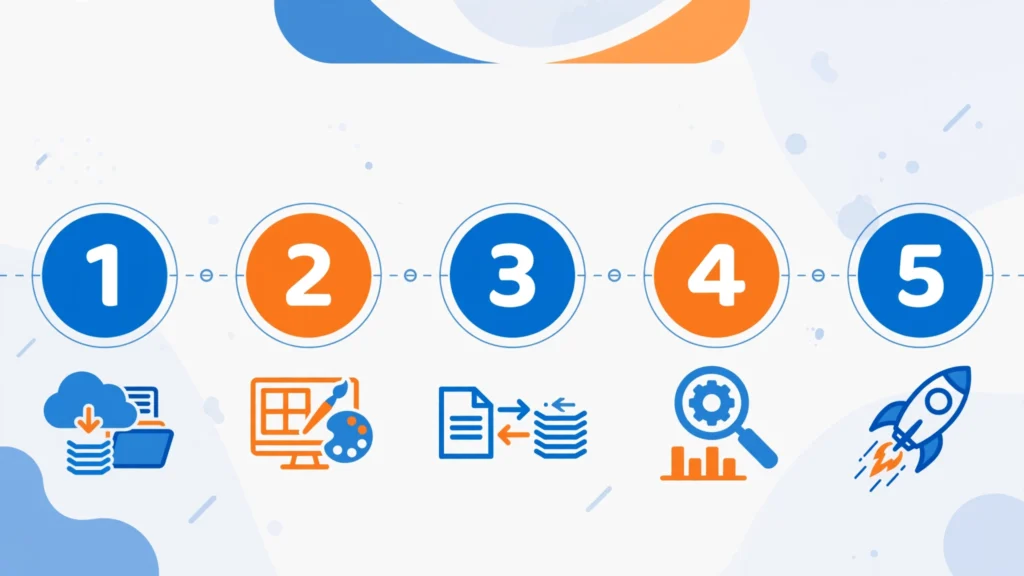
The Step-by-Step WordPress to Webflow Migration Process
Here is the process professional agencies follow to move a site from WordPress to Webflow without breaking things:
Step 1: Export your WordPress content
Use WordPress’s built-in exporter (Tools → Export) or a plugin like WP All Export to pull posts, pages, and media into CSV format. Clean the data: remove spam comments, fix broken image links, and standardize categories and tags. The quality of your import depends entirely on the quality of this export.
Step 2: Design (or redesign) in Webflow
This is where most of the project time goes. Rather than cloning your old theme pixel-for-pixel, treat the migration as a redesign opportunity — improve navigation, page speed structure, and conversion paths. Build the design system first (typography, colors, components), then the page templates. If you already have Figma designs, our Figma to Webflow conversion guide covers how that handoff works.
Step 3: Set up Webflow CMS collections
Recreate your content architecture as Webflow CMS collections — blog posts, team members, case studies, testimonials. Map every CSV column to a CMS field, including SEO title and description fields so metadata survives the move.
Step 4: Import content and media
Import the cleaned CSV into your collections. Re-upload images (this is a good moment to compress them to WebP), reconnect internal links, and verify that every post and page renders correctly. Expect a QA pass here — imports are never perfect on the first try.
Step 5: Rebuild functionality and integrations
Recreate forms, connect analytics, add chat widgets, set up email integrations, and configure Webflow Ecommerce if you’re moving a store. Test every form submission and every third-party script on the Webflow staging domain before launch.
Step 6: Handle SEO, redirects, and launch
Set page-level SEO titles and descriptions (Webflow’s SEO settings make this straightforward — see our Webflow SEO guide), configure 301 redirects for every changed URL, submit the new sitemap to Google Search Console, and then switch your DNS. Monitor rankings and crawl errors daily for the first two weeks.
Protecting Your SEO During the Migration
The number-one fear about a webflow migration is losing Google rankings. That fear is justified — poorly executed migrations routinely cause traffic drops. But migrations done right can actually improve rankings, because the new site is usually faster and better structured. The difference is entirely in the SEO handoff:
| SEO task | What to do | Why it matters |
|---|---|---|
| URL mapping | Keep slugs identical; 301-redirect every changed URL to its closest new match | Preserves link equity and prevents 404s |
| Title tags & meta descriptions | Transfer them exactly; don’t “improve” them during the move | Avoids ranking fluctuations from on-page changes |
| Heading structure | Keep one H1 per page with the same target keyword | Maintains topical relevance signals |
| Internal linking | Rebuild key internal links with the same anchor text | Preserves PageRank flow through the site |
| XML sitemap | Submit the new sitemap in Search Console on launch day | Speeds up re-crawling and indexing |
| Analytics & Search Console | Verify the new property before launch; keep old data | Lets you compare pre/post traffic accurately |
| Page speed | Test Core Web Vitals before and after | Speed gains protect (or lift) rankings |
| Structured data | Re-implement schema markup (FAQ, Organization, etc.) | Preserves rich-result eligibility |
One golden rule: never redesign content and migrate platforms at the same time without separating the variables. If traffic drops after launch, you need to know whether the platform move or the content changes caused it. Keep on-page content identical at launch; optimize afterward.

Common Migration Mistakes (and How to Avoid Them)
| Mistake | What goes wrong | The fix |
|---|---|---|
| Skipping the URL map | Hundreds of 404s; link equity evaporates | Crawl the old site first and redirect every URL |
| Launching without staging QA | Broken forms, missing images, layout bugs go live | Full QA pass on the webflow.io staging domain |
| Forgetting redirects for paginated/tag pages | Thin pages 404; crawl budget wasted | Include archives, tags, and pagination in the redirect map |
| Changing all content at launch | Traffic drop with no clear cause | Migrate content as-is; redesign and optimize in phases |
| No Search Console monitoring | Indexing issues go unnoticed for weeks | Check Coverage and Performance reports daily for 2 weeks |
| DNS switch during peak hours | Downtime hits when it hurts most | Switch DNS in a low-traffic window with rollback ready |
DIY vs Hiring a Webflow Migration Service
A small brochure site with 20 pages can be a manageable DIY project if you’re comfortable in Webflow. But most business sites are not that simple. Consider a professional webflow migration service when:
- Your site has 50+ pages, a blog archive, or complex URL structures
- SEO traffic is a meaningful revenue channel you can’t afford to dip
- You need WooCommerce, membership, or custom functionality re-mapped
- You want the migration doubled as a redesign (most agencies bundle this)
- Your team has no Webflow experience and no time to learn mid-project
Agencies that do migrations weekly have checklists, redirect tooling, and QA processes that are hard to replicate on a first attempt. The cost of a botched DIY migration — lost rankings, emergency fixes, weeks of downtime — usually exceeds the agency fee.
FAQ: Migrating from WordPress to Webflow
How long does a WordPress to Webflow migration take?
A small site (under 30 pages) typically takes 2–4 weeks including design rebuild and QA. Larger sites with blogs, CMS collections, and integrations run 6–10 weeks. The design rebuild — not the content transfer — drives the timeline.
Will I lose my Google rankings when migrating to Webflow?
Not if the migration is done properly. Keep URLs the same (or 301-redirect changes), transfer title tags and meta descriptions exactly, and submit the new sitemap. Most well-executed migrations see rankings stabilize within 2–4 weeks, often improving thanks to better site speed.
Can my blog posts and images be transferred automatically?
Yes. WordPress content exports to CSV and imports into Webflow’s CMS cleanly. Images need re-uploading (a good chance to compress them), and internal links should be verified after import.
What happens to my WordPress plugins?
Plugins don’t transfer — their functions get replaced. Forms, SEO, caching, and security plugins map to Webflow-native features or third-party integrations (e.g., HubSpot for CRM forms, Weglot for multilingual). List every plugin’s job before the project starts.
Is Webflow better than WordPress for SEO?
Webflow handles technical SEO well — clean code, fast hosting, easy meta and schema control. WordPress with the right setup can match it, but requires ongoing plugin maintenance to stay there. For most small businesses, Webflow delivers strong SEO with far less upkeep.
Conclusion: Plan the Move, Then Move with Confidence
Migrating from WordPress to Webflow is one of the highest-ROI projects a growing business can undertake — faster pages, stronger security, and a site your team can actually update themselves. The key is treating it as a managed project, not a weekend task: audit first, map every URL, protect your SEO at every step, and QA ruthlessly before launch.
If you’re considering the switch, start with a clear picture of where your site stands today. Get a free website audit — we’ll review your SEO, speed, and technical health and tell you honestly whether a migration makes sense for your business, and what it would take to do it safely.